Most teams with a mascot have it as a flat picture: a PNG from a designer, a logo character, a sticker. This guide takes that picture to a moving mascot you can put in a website, an app or a chat. The steps use Lumorig, which we make, but the advice on pictures, motion and formats holds for any tool.
1. Get the picture right#
The picture decides more about the result than anything you type later. The best uploads have:
- The whole character. Head to feet, nothing cropped at the edges. A hand cut off by the frame can't wave.
- One character. On a sheet with several poses, the biggest figure is used, so upload the one you want.
- A clean background. Transparent or one plain colour is best. A busy scene works, because the character is cut out of it, but fine edges like hair come out cleaner on a plain background.
- A front or three-quarter view, with arms and legs clearly apart from the body. Arms pressed against the sides are hard to move.
- No text baked in. Put the name or slogan next to the mascot in your layout, not in the picture.
PNG, JPG, WebP and SVG all work, up to 15 MB. Size matters less than clarity: a crisp 800-pixel picture beats a blurry 4,000-pixel one.
2. Choose clips or a rebuild#
This is the one decision that matters. You can do both with the same picture, and many people do.
| Video clips | A rebuild (rig) | |
|---|---|---|
| Looks like | Your exact picture, moving | A close vector redraw of your character |
| Motions | Anything you can describe | 18 presets free, custom motions from words |
| Files | WebM, HEVC, WebP, GIF, MP4, sprite sheets | Lottie, animated SVG, GIF, MP4, WebM, sprite sheets |
| File size | A few hundred KB to several MB | Tens of KB as Lottie |
| Recolour and resize | No, it's video | Yes, it's vector |
| Cost | 60 credits a clip | 150 credits once |
Choose clips when#
- the character has to look exactly like your art, texture and shading included;
- you need a motion a puppet can't do, like jumping into the air, turning around or picking something up;
- the mascot goes in videos, slides, social posts or chat apps.
 pico.png · uploadedclip · your exact art
Choose a rebuild when#
- the mascot lives inside your app or site and should load fast;
- you want Lottie or SVG, or to recolour it for dark mode or a campaign;
- you want many motions without paying for each one, or code to switch them live.
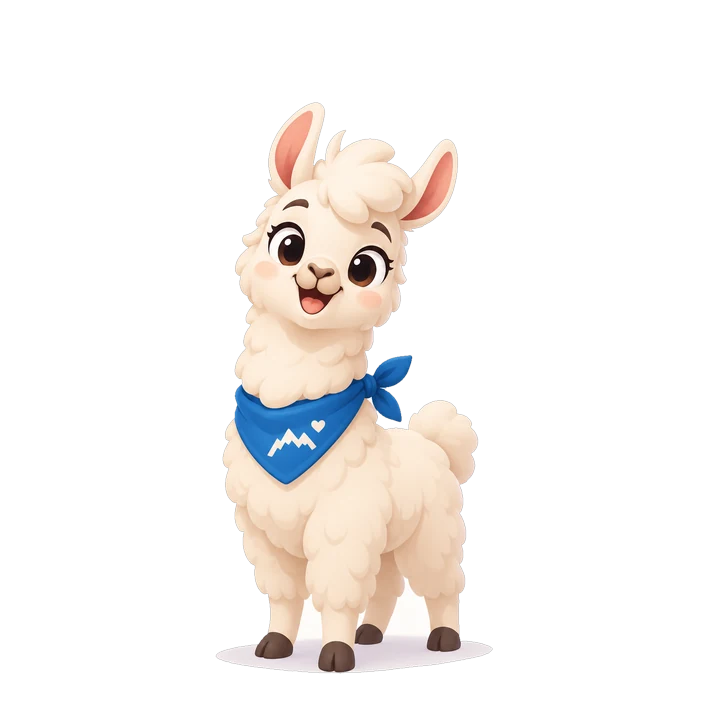
layers: body · leg_back_l · leg_back_r · tail · leg_r · leg_l · ear_r · ear_l · head · eyes · mouth · bandana
3. Upload it#
In the studio, drop the picture into Keep the character you have. You see the cut-out first, then pick Animate my exact art for clips or Rebuild as vector for a rig. Add a note if something in the picture is easy to misread (“she's holding a pair of gloves, not flowers”).
A rebuild ends with your picture and the rig side by side. Look closely at the face and small details. If a part is off, say which one in the chat and it is redrawn from your picture. If the redraw isn't close enough for you, Keep this exact picture as video clips switches to clips at no extra cost.
4. Describe a motion that works#
On a rebuild, the preset motions (wave, nod, bounce, celebrate, think and more) play instantly and cost nothing. For anything else, and for every clip, you describe the motion in words (a clip's motion box takes up to 300 characters). Good descriptions have three things in common:
- One clear action. “Waves hello with the right hand, smiling” works. “Waves, then dances, then sits down and reads” is three clips.
- It stays in place. The mascot has to fit inside the frame for the whole clip. “Flies toward the camera” or “runs off screen” would be cut off at the edge, so motions like that are turned into the nearest version that stays in frame: flying on the spot instead of flying away.
- Concrete body parts. Say which hand, which way it turns, what the face does. “Tilts its head left and raises one eyebrow” beats “looks curious”.
A motion that needs a different starting pose, like sitting down or holding a prop, costs 70 credits instead of 60, because a new starting picture is drawn first. If a take isn't right, Re-roll makes another one; it costs the same as a new clip, and a take that fails our checks is refunded.
Every clip mascot also rests by breathing, for free, so it never sits frozen between motions. See transparent mascot animation for more examples.
5. Export the right file for each place#
The same mascot needs a different file in different places. Pick by where it will live:
| Where it lives | From clips | From a rebuild |
|---|---|---|
| Website | WebM for Chrome, Firefox and Android, plus HEVC MOV for Safari; or animated WebP, which works everywhere | The live player or Lottie |
| iOS or Android app | HEVC MOV on iOS; stacked-alpha MP4 on Android and React Native | Lottie |
| Slack, email | GIF (choose a matte colour that matches the background) | GIF |
| Notion, docs | Animated WebP | GIF |
| Social posts, slides | MP4 on a background colour | MP4 |
| 2D game | Sprite sheet with a JSON atlas | Sprite sheet |
| Video editing | PNG sequence | WebM with transparency |
On Free, downloads are watermarked previews up to 512 px, so you can try them in place. On Maker and Studio, every file is clean, at full size, with commercial use. The export docs list every format and option.
Common problems and fixes#
- The clip is cut off at the edge. The motion travels too far. Describe it happening on the spot, or re-roll.
- A detail changes while it moves. Shorter, simpler motions keep more detail. If it must never change, use a rebuild.
- A rim of the old background shows. Upload a version with a transparent or plain background.
- The rebuild missed a detail. Name the part in the chat (“the badge on the cap is a star, not a circle”) and it is redrawn from your picture.
- An arm won't move on the rig. It was drawn pressed against the body. A clip can still move it.
Comparing tools before you start? See six AI mascot animation tools compared.
Questions#
Can I animate a mascot from a PNG?
Yes. Upload a PNG, JPG, WebP or SVG, up to 15 MB. A transparent or plain background gives the cleanest result, but a busy background is cut away for you.
Will my mascot look exactly the same?
Clips start from your exact picture, but each frame of the motion is generated, so a small detail can shift while it moves. A rebuild is a redraw as vector parts, close rather than identical, and you see it beside your original before you use it. If the likeness matters more than anything, choose clips.
How long does it take?
A rebuild usually takes a few minutes. A clip takes a few minutes too. You can leave the page while either one is being made; it carries on and is waiting in your library.
How much does it cost?
A rebuild is 150 credits, and the 18 preset motions on it cost nothing. A clip is 60 credits, or 70 when it needs a new starting pose. Free starts with 100 credits once, and your first result always finishes. Maker is $12 a month.
Can I use the animated mascot commercially?
Yes, on Maker and Studio, as long as you have the rights to the mascot you uploaded. Free downloads are watermarked previews for trying it out.